While in the status "Grant Group (1-4)" cases may also have a Task Notification appearing on the case. This task will appear on your dashboard and in the “Tasks” section to the left of your screen.
This is a helpful reminder that you have been sorted into one of the Grant Groups (1-4). If you are interested in applying for a Grant, we recommend applying as soon as possible. Completing this task by the due date on this notification is a suggestion, not a requirement. The Program cannot guarantee that funding will still be available if you delay.
Example of "Active" Task Notification in Applicant Portal:
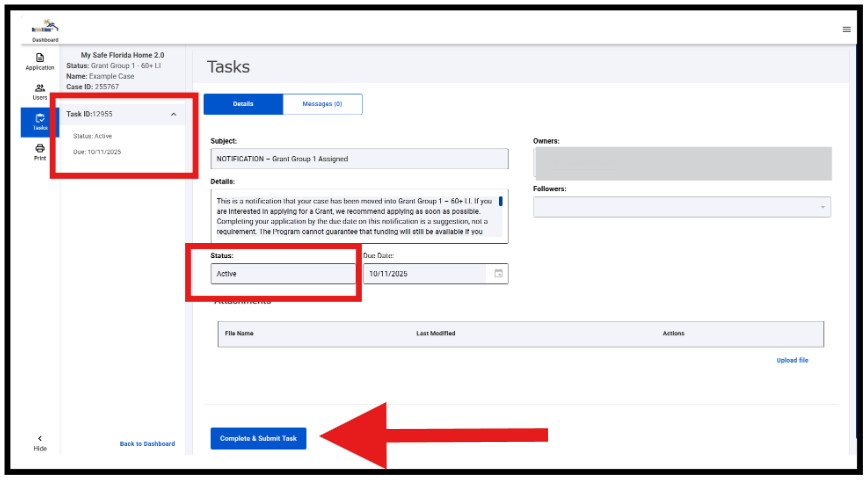
Even if you complete the "Grant Application" steps, if you do not go into the "Tasks" section and additionally mark the task as complete, you will continue to receive system reminders.
Steps to mark the "Task" as complete:
1. Read and complete the Grant Application in the Applicant Portal.
2. Refresh your screen to see your status change to "Grant Application Submitted".
3. Go to the left side of your screen and open the "Tasks" section.
4. Click the blue button titled "Complete & Submit Task".
5. Click "Continue" to move forward.
After clicking continue, a green pop-up will briefly display saying task is complete. The task will now show as complete.
Example of "Complete" Task Notification in Applicant Portal:
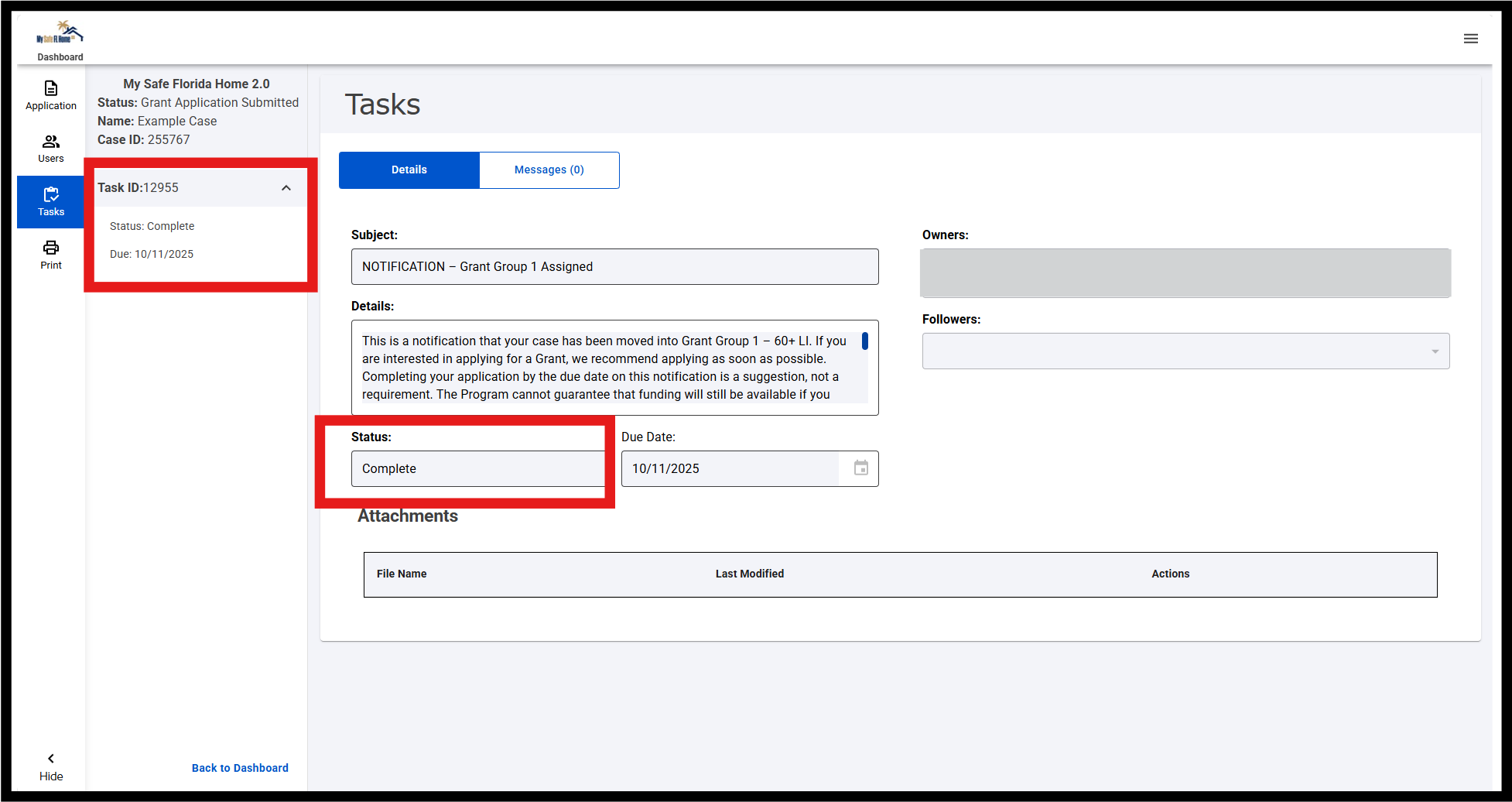
If you complete this task in error, it has no negative impact on your case status or Application in the system. You can always return to view the information provided from completed tasks in the “My Tasks” section.
Even if you complete the "Inspection Application" steps, if you do not go into the "Tasks" section and additionally mark the task as complete, you will continue to receive system reminders.
Steps to mark the "Task" as complete:
1. Read and complete the Inspection Application in the Applicant Portal.
2. Refresh your screen to see your status change to "Inspection Application Submitted".
3. Go to the left side of your screen and open the "Tasks" section.
4. Click the blue button titled "Complete & Submit Task".
5. Click "Continue" to move forward.
After clicking continue, a green pop-up will briefly display saying task is complete. The task will now show as complete.
Example of "Complete" Task Notification in Applicant Portal:
If you complete this task in error, it has no negative impact on your case status or Application in the system. You can always return to view the information provided from completed tasks in the “My Tasks” section.
Was this article helpful?
That’s Great!
Thank you for your feedback
Sorry! We couldn't be helpful
Thank you for your feedback
Feedback sent
We appreciate your effort and will try to fix the article